Showing posts with label Computer tricks. Show all posts

Tuesday, April 14, 2015

Read this before buy a Desktop or Laptop


Are you already to get a Desktop or Laptop computer if so this article was written for you. Before buy a computer you must aware about following things

·          Be aware about machine configuration
·         Be aware about brand and version of your computer
·         Take the advice from another user
·         Find out in the internet about your computer
·         Specially be aware about the cost
·         What is the purpose in buying a computer

Be aware about machine configuration
What is your machine configuration? When we buying a computer basically we must find out what are the features of our computer. What are the hardware available in our computer? Features are matching with our purpose….. is machine configure up to date….
EX: older Pentium machine configures are now already expiring


Be aware about brand and version of your computer
Let me explain….. If you buy an older version from any of brand you probably doing wrong thing, why???. Older versions of any brand are going to expire. If you buy an older version you definitely face to many problem. One of them…….. just imagine when you using it you will have to change the hardware of your computer…. Then how can you find the hardware parts.. it will be very very difficult…. Because your laptop or desktop is an older version….

Take the advice from another user
This thing you must do instantly…. Because there is no any qualified person like another user of equipment to get advice about. If you take the advice from another user,,, you can identify what problem you will have to face in future when use the computer… you can get help from him to select the good computer


Ok then I think it will be enough for today the next chapter of this article will be continued in my next post 

Are you overcharging your laptop battery


Are you overcharging your laptop battery.............. if so please read this article carefully.  first i want to ask is your laptop battery overcharging..... if you don't know properly about this please see my last article on clicking here
let's get to today topic, are you overcharge your laptop battery..... if so i highly recommend do not go to do it... why
do you know there is few cell in your battery. in my laptop there are six cells. if you don't know please check about your laptop in the internet or anywhere you want.
when you overcharging your battery the cells in the battery don't work properly, i have seen some people don't remove the AC power from laptop after at 100% level. when you doing this...... chemicals in the battery cells are going to frees. then those cells are damaging and your battery is not charging properly or reduce battery life rapidly.
so if you want to save your battery life for a long time do the following things

  1. remove the AC power at 100% level of battery (stay attention when battery charging)
  2. plug your AC power cable when battery reduce fully (at the 7% level most of)
  3. do not charge between battery at 10%-99% levels
  4. full charge the battery(do not remove AC power when battery charging,, remove the power after the charging

ok then i think this will be very help full to you i know most people are don't remove the ac power after battery charging ,,, if you have more doubt related to this article please leave a comment
Thank you
let's meet again

Friday, April 3, 2015

Is your Laptop battery overcharging

hi guys after long time we are back to field

here we brought some important tricks for laptop users. i know many people in the world are using laptop. i don't know what laptop brand you are using, what is the machine configure, what is your operating system, but i know one thing......... that is if you use laptop there is a battery of your laptop
yeap probably it's have battery

What are these batteries

  1. nickel cadmium (NiCad)
  2. nickel metal hydride (NiMH)
  3. lithium ion (Li-ion), with Li-ion being the most common in newer 
now here i'm not going to talk about 1 and 2 types of batteries, i'm talking about lithium ion,
what is the type of your battery
        remove the battery from laptop and check out the striker


i think it's should be a (Li-ion) battery. if so it's your battery overcharging. then here the answer
no it is not overcharging. i probably know it. how can say it then here the prove

there is an internal cur cit in your battery to stop overcharging. there for your battery is not overcharging, but i want tell  if your battery internal cur cit which i said above has damage from physical reason you can't stop the overcharging, only one way to stop it when you charging it stay attention with your battery level and remove the charger when battery energy level at 100% level
then let it come to minimum level....... most of 7% level again charge it 7% level, i specially notice please check you battery type it's a (Li-ion) or other one........

ok then let's stop for today.let's meat again with very valuable post  

Saturday, January 31, 2015

How to stop the update notification of the Internet Download Manager.....!!

Hi guys after long long time we are back again with a new post.......
are you using internet download manager.....????
if you are using idm..... i think you have a problem about update notification of the idm. when you connecting to internet there coming update notification from the Internet download manager. then if you are using a original copy you can update it without doubt, but if you are using crack version probably you can't update it. because your crack will catch by the idm site. then you can't use idm because there come a massage about FAKE SERIAL NUMBER.
i think some people are known about this but most people are don't know it. then today i will show how to stop this UPDATE NOTIFICATION,
 follow this method:-

  1. press "Windows button+R"
  2. type "regedit" and hit enter
  3. now you can see the registry editor dialog box
  4. then double click on the HKEY_CURRENT_USER from the category list
  5. now you can see drop down list and double click on the SOFTWARE tab
  6. then again coming drop down list then you can see a tab as DownloadManager double click on it
  7. now you can some staff on the other side 
  8. find the value box LastCheck and double click it
  9. then change value data using future date like 2050-12-12
  10. then click OK
ok then that's it you done it now update notification will never come again

if you can't understand please watch the below video


Friday, September 12, 2014

Increase your computer speed simply without software part 4

here we are back again with last post of "increase your computer speed simply without software

Manually delete the unwanted temporary files 

ok then let's learn how to delete unwanted files of your computer

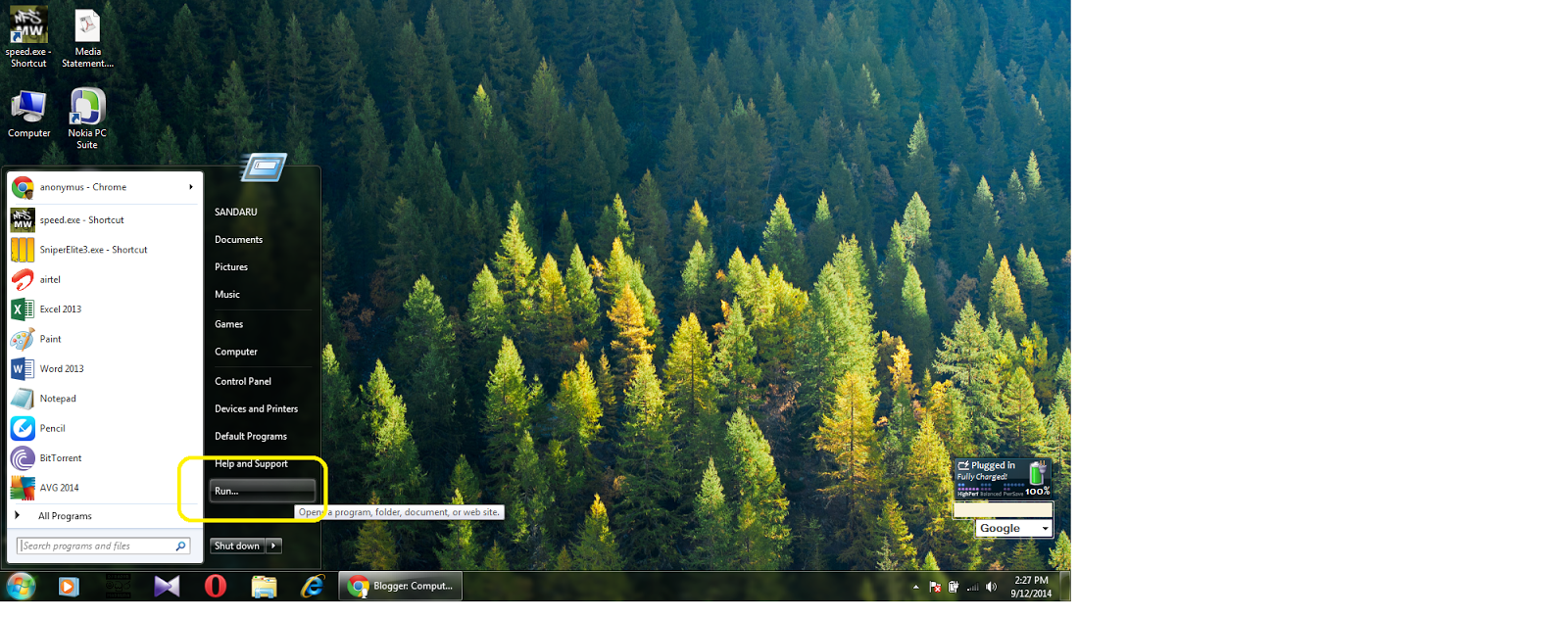
  1. Click on the start button of your computer(desktop)
  2. click on the "run"
  3. then type word of "%temp%" in the dialog box
  4. ok then now you can every unwanted file of your computer from the temp window
  5. Select them all with pressing"ctlr button and A button"
  6. then delete (don't scare all of them are unwanted file delete them all)

Manually delete the unwanted file in picture explain


Wednesday, September 10, 2014

Increase your computer speed simply without software 3

hi hello here we are back again with continuing yesterday post. yesterday we post how to increase your computer speed simply but without any software ok let's begin to speed

stop the unwanted start up program/application/software

  1. Step : go to start menu and click on the "run"( press the "windows button and "R" button together)
  2. Step : type the word that "msconfig" in run dialog box then press ok
  3. Step : then coming System configuration dialog box 
  4. Step : then click on the startup tab on that dialog box
  5. Step : then you can see many application have selected of your computer
  6. ok then remove the tick that you want unnecessary application like "  Daemon tool, bit torrent and other unnecessary application and press on "ok"(Dont stop the application that install for hardware devices of your computer)
  7. then you can restart and postpone the restart 
ok then let's see it again with my picture explain 

stop the unwanted start up program/application/software in picture explain


Tuesday, September 9, 2014

Increase your computer speed simply without software 2

Clean up your hard disk

  1. Step : open the my computer 
  2. Step : right click on your any of hard disk icon in your window
  3. Step : click on the "general" tab from oncoming window 
  4. then select the "Disk cleanup" option
  5. then you have to wait because the next operation will get several minutes
  6. then select the all of unnecessary file
  7. then Click on the "OK" option
ok you did it! look its very easy i will show it in picture

Clean up your hard disk in picture explain


Increase your computer speed simply without software

Here we are back again with important tricks, what is your computer? its may be a Pentium 4. dual core core 2 quad, core i3, core i5 or core i7. if we use any of them your machine is slowing down because of some reason


  1. Collect the unwanted file
  2. Collect the unwanted software
  3. virus
  4. Start up of unwanted software or file
then we have software to stop these problem such as AVG tuneup utilities. but we should get them with paying money. normally they are selling at higher price. more people can't buy them at those prices.so some people are using them with patching or cracking. today we give a trick to increase your computer speed without software

  1. Defragment your hard disk 
  2. cleanup your hard disk
  3. stop the unwanted start up software
  4. manually delete the unwanted temporary file

Defragment your hard dick 

OPEN THE MY COMPUTER
  1. Step : right click on any of "HARD DISK ICON" in your my computer window
  2. Step : select the properties from upcoming popup label 
  3. Step : then select the tool tab from upcoming window
  4. Step : then coming a tool window in the same window
  5. Step : now you can see a Defragment option
  6. Step : select that option
  7. Step : Select a disk that you want to defrag( you can choose any of them)
  8. Step : 1st analyse your disk
  9. Step : choose the defragment disk option if you want to defrag that disk
  10. Step : restart your computer after the operation

Defragment your hard disk in piture explain


ok then end for today tomorrow i will post me next trick don't froget to like and comment see you again bye ! 


Saturday, August 23, 2014

A funny virus ha ha haaa


virus
do you know we can create virus using note pad, today i brought that. i will tell how to create a virus  would you like to create a virus????
then let's do it we can create a virus in note pad if you click on that "ten thousands and more and more of folders will be create that" so don't put in to your desktop and don't double click it,
let's do it

  1. open the note pad
  2. Cope and paste below code to note pad


@echo off
:top
md %random%
goto top

  1. then save it with as naming "aero trick.bat"
  2. k then you done it and let's enjoy it 
  3. i will tell you how to test it after save it create a short cut of it to in desktop and change it's icon you can share this with your friend through face book, pen drives, e-mail etc.if you click on it restart your computer then virus is stop automatically 
  4. time to go
bye
i tell again you shouldn't click on it if you click i don't know
bye


Friday, August 22, 2014

A funny trick

would you like to listen your name when your computer starting.so if you like there are few method to do that. follow the below step
  1. open the "note pad"
  2. next copy the below code and paste it in to the note pad
Dim speaks, speech

speaks="Welcome to your PC, name"
Set speech=CreateObject("sapi.spvoice")

speech.Speak speaks   

Edit the code

  1. Put a word that you wish to here "Welcome to your PC, name" 
  2. Then Save the file
            File> Save as 
when you saving you must put the name to the file "welcome.vbs" (save the file with using this name
if you done this correctly you must here the name when file open
then you must follow this step to listen your name when computer starting 
paste this code to your startup folder

Follow this
Windows XP
C:\Documents and Settings\All Users\Start Menu\Programs\Startup

Windows vista/7
 C:\Users\UserName\AppData\Roaming\Microsoft\Windows\Start Menu\Programs\Startup 

k then you did it and please restart the your computer to check it

time to leave                                                 good bye!!!!!!


Saturday, August 9, 2014

How to download a you tube videos without soft wares

Here we are back again with an important post. This time we bring a post about computer tricks. So let’s start it.
How many soft wares do you use in downloading a you tube video. Yes we have so many soft wares. May be you are using internet download manager, you tube down loader or many other soft wares. They are very useful and very effective. But do you know???  There is one more method that we can use to download you tube video
Okeeeeeeei we can down load videos with typing a 2 ENHLISH LETTER. Ok ok!!!! stop talking and let’s see how we can do it, I will show it within pictures. There are few step to follow,

1.     Step: go to the video that you want to download( if the picture is not clear please click on it) 
    

Then you can see a page like this. You can see the address bar in your browser. (Don’t care the browser. You can use this method in any browser)


1.     Step: click on the link of your video in the address bar and type a double  “SS” in front of the link


After that you can see a page like this. Through this page you can download the video in any video format such as 3gp, flv, mp4, audio, webm. See it is more than easy to use a software. So maybe you have a question. How is the downloading speed of this method, don’t worry it is speed like idm(internet down load manager), but u should have good internet connection, so this is the end of this, you can put a like if this post had been useful to you